
How to use Muse: your first tasks, step by step
We gave Muse real tasks on our own account and recorded what happened: how long it took, what it said, and where it went slightly wrong. Here’s how to get useful work out of it from day one.
Quick answer
Type what you want done in plain language, add any limits, and let Muse work. For example: “Find three well-reviewed coffee shops near Union Square with their hours. Just list them; don’t book anything.” Watch the status under Muse’s avatar while it works, approve anything it asks permission for, and check its results. Reminders and routines work the same way: just ask. In our tests a research task took about 2½ minutes and a reminder about 20 seconds.
Outside the US or Canada? Muse isn’t available there yet. You can join Meta’s waitlist, check which countries have it, or see what to use instead.
How we checked
TestedOn October 3, 2026, we ran three tasks on our own free Muse account (muse.ai web app): a research task, a reminder we then cancelled, and “What can you help me with?”. We didn’t go through first-time sign-up, which needs a new account; that part comes from Meta’s Help Center. See how we label evidence.
1. Sign in
Use the Muse app on iPhone or Android, the Mac app, or the web at muse.ai, and sign in with a Meta account. If you don’t have one, you can create it with an existing Facebook or Instagram account, or with an email address or phone number.14 You need to be 18 or older and in the US or Canada; see availability.
2. Know the screen
TestedOn the web, the left edge has six icons: Chat, Search, Feed, Ideas, Goals and Library. Next to them is your chat list: Main chat, any Channels such as WhatsApp, and Side chats (the + starts a new one, useful for keeping a project separate). Settings are in the menu at the bottom left.
- Ideas suggests things to hand off, based on what you’ve talked about.
- Goals holds longer-running jobs Muse keeps working on.
- Library keeps files and artifacts Muse made or you uploaded.1
We tested the three proactive tabs in detail: Goals, Feed and Ideas.
3. Give it a task
TestedOur first task was: “Find three well-reviewed coffee shops near Union Square in San Francisco with their opening hours. Just list them; don’t book or buy anything.”
- It may take a moment to startFor about a minute our message showed “Still sending” and the status under Muse’s avatar said “Connecting…”. Don’t resend; it caught up on its own. If it never does, see Muse not working.
- Watch the status lineIt then switched to “Checking hours”, so you can see what Muse is doing.
- Read the answerAbout 2½ minutes after sending, Muse listed three shops with descriptions and hours, and added that hours can change on holidays.
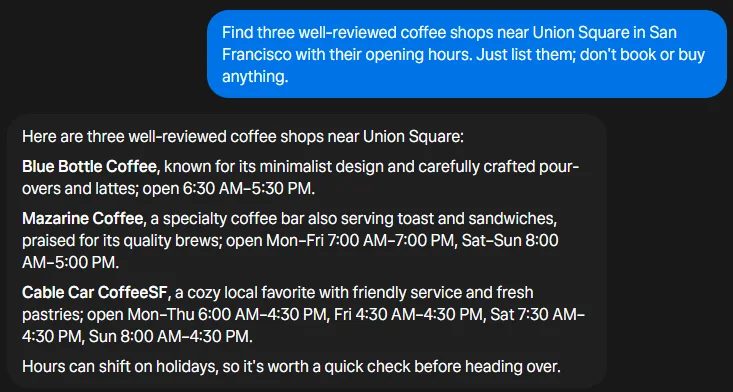
Check what it finds. One listed time, a Friday opening at “4:30 AM”, looks unlikely for a coffee shop. Muse is fast at gathering information, but treat details like hours, prices and availability as a starting point and confirm anything that matters.
4. How to word requests
Meta’s advice is to “be as clear and specific as possible.” Muse may ask clarifying questions before it starts.1 From our tests, these habits help:
- Say what “done” looks like
- “List three options with hours” beats “find coffee”.
- Set limits
- “Don’t book or buy anything” or “ask me before emailing anyone.” Muse followed ours.
- Give the place and time
- Name the city or area rather than “near me”, unless you want it to use your location.
- Keep projects apart
- Use a side chat for a project so its context doesn’t mix with everything else.
- Ask for sources
- For research, ask it to include links so you can check the details.
5. Approve or deny actions
TestedWhen a task involves something sensitive, like sending an email, Muse stops and shows exactly what it wants to do, with buttons like Allow, Always allow for this recipient and Deny. When we pressed Deny, nothing was sent. See the real prompt in How Muse works, and set how often it asks in Settings → Permissions (our recommended settings).
6. Set and cancel reminders
TestedWe asked, “Remind me tomorrow at 9am: MetaMuseAI test reminder.” Muse replied, “Done, your reminder is set for tomorrow (Sunday) at 9:00 AM,” and showed a confirmation card. Then “Cancel my MetaMuseAI test reminder” got: “Done, the reminder is cancelled. You won’t hear about it tomorrow.” Each took about 20 seconds.
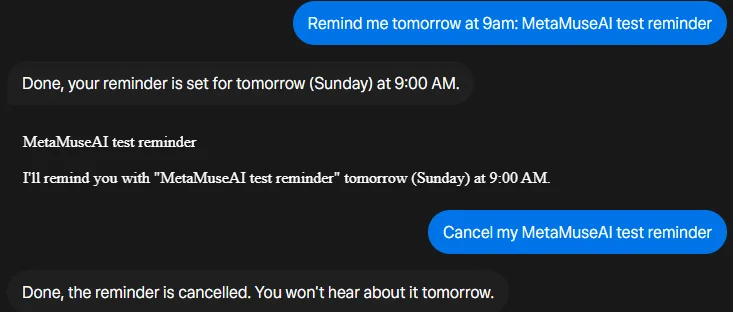
Reminders arrive as messages in your Muse chat and follow your time zone. Recurring ones (“every Monday at 9am…”) continue until you cancel them. Ask “What reminders do I have?” to see them, or check Upcoming under Muse’s avatar.2
7. Find out what it can do
TestedAsking “What can you help me with?” got an answer built from what Muse already knew about our account, grouped into content and creative work, research, email and inbox, reminders and routines, and building things like documents, spreadsheets and simple web pages. Because it was personal, we haven’t shown it.
Meta describes “skills” as built-in capabilities, including creating podcasts, generating images, compiling research, drafting documents, creating dashboards and browsing the web. You don’t pick them; Muse chooses the right one when you ask. The Ideas tab suggests more.3
8. Where to go next
- Connect apps such as Gmail or Google Calendar so Muse can work with them: connectors tracker.
- Use it from WhatsApp: Muse in WhatsApp.
- Watch your allowance: long tasks use more; see usage limits.
- Tighten privacy: turn off AI training if you prefer; see manage your data.
Sources
- How to get started with Muse Meta Help Center · checked Oct 3, 2026
- How to manage reminders and scheduled tasks with Muse Meta Help Center
- How Muse works with skills Meta Help Center
- Download Muse (Mac and mobile) Meta · checked Oct 3, 2026
Last tested in the app: 2026-10-03. Spotted something different on your screen? Tell us.
Frequently asked questions
How do I start using Muse?
Sign in at muse.ai or in the Muse app with a Meta account (you can create one with Facebook, Instagram, an email address or a phone number), then type what you want done in the chat. Muse is for adults 18+ in the US and Canada.1
How long does Muse take to do a task?
It varies. In our test on October 3, 2026, a simple research task took about two and a half minutes, including a minute in which Muse showed “Connecting…” before starting. Setting and cancelling a reminder took about 20 seconds each.
How do I set a reminder in Muse?
Just ask, for example “Remind me tomorrow at 9am: call the dentist.” Muse confirms the time. To cancel, say “Cancel my dentist reminder.” Recurring reminders keep going until you cancel them.2
What can Muse do?
Ask it “What can you help me with?” It answers based on what it knows about you. Meta lists built-in skills such as research, drafting documents, creating images and podcasts, building dashboards and browsing the web.3