
What is Muse in WhatsApp? Meaning, setup and how to remove it
You can message your Muse agent from WhatsApp like any contact, and it keeps working after you close the chat. Meta’s Help Center doesn’t cover this yet, so we checked how it’s set up on our own account.
Quick answer
Muse in WhatsApp is Meta’s personal AI agent, connected to WhatsApp so you can message it like any contact. Once linked, it appears in Muse under Settings → Messaging channels (“Chat with your agent in other messaging apps”), with a status and a Disconnect button. Your WhatsApp conversation with Muse also shows up on muse.ai as its own WhatsApp channel. It’s separate from Meta AI, the free assistant already built into WhatsApp.
How we checked
TestedOn October 3, 2026, we checked Muse’s Messaging channels settings on our own account (muse.ai web app) without changing anything, and sent Muse a test question from WhatsApp, then read the exchange on muse.ai. Meta’s Help Center has no WhatsApp article yet; other details come from Meta’s product page. See how we label evidence.
What “Muse in WhatsApp” means
Muse only becomes a WhatsApp chat after you connect it from Muse’s own settings; that’s how it worked on our account. If what you’re seeing is a blue circle or an AI chat you didn’t set up, that’s most likely Meta AI, Meta’s built-in assistant. Which “Muse” are you seeing, and how to turn it off.
Meta’s product page says you can “chat with your Muse in the same way you message with other people, using the Muse app on mobile, Mac, or directly in WhatsApp.”1 It’s the same agent: the one that works on its own cloud computer, uses your connectors and asks before sensitive actions. WhatsApp is just another way to talk to it.
Don’t confuse it with Meta AI. WhatsApp already has Meta AI, Meta’s free assistant (the blue ring). Muse is a separate product you sign up for, with its own plans; connecting it lets you message your Muse in WhatsApp.2
Where it lives in Muse’s settings
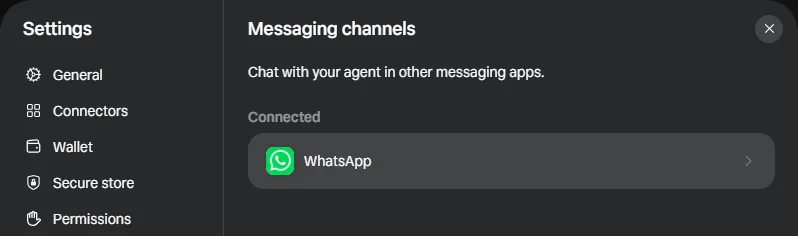
TestedIn Muse on the web: Menu → Settings → Messaging channels. The page reads “Chat with your agent in other messaging apps,” and lists WhatsApp under Connected.
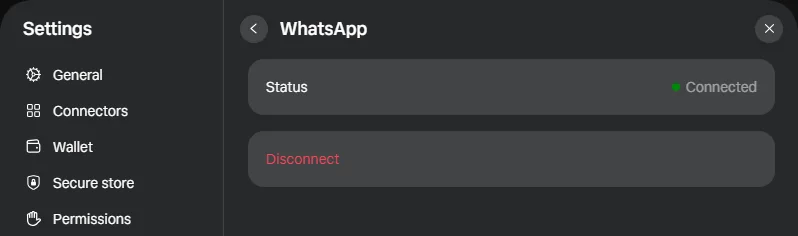
Opening WhatsApp shows Status: Connected and a red Disconnect button. No phone number is displayed on this screen.
Where your WhatsApp chats appear
TestedOn muse.ai, the sidebar groups conversations into Main chat, Channels (where WhatsApp appears) and Side chats. Your WhatsApp conversation with Muse is kept as its own channel, and you can read it on the web, but it’s view only: muse.ai says “Messages are synced from WhatsApp. Continue this conversation in WhatsApp.” Our test message showed up on the web within about a minute.

What Muse said it can do in WhatsApp
TestedWe asked Muse from WhatsApp, “What can you do for me here in WhatsApp?” The answer was tailored to our account, so we’re summarizing rather than showing it. Muse grouped its answer into:
- Everyday tasks
- Answering questions, web research with sources, reminders that “ping you back in this same chat” (one-time or recurring), and reading voice notes, screenshots and photos you send.
- Connected accounts
- Working with the apps you’ve connected, such as Gmail and Google Calendar, and posting to Instagram or Facebook only with approval.
- Creative and work help
- Generating images, writing captions and scripts, help with code, and tracking goals and follow-ups.
It also listed limits: in WhatsApp it can’t make phone calls or hold live voice conversations, it won’t post or act on your accounts “without your explicit approval first,” and it delivers scheduled results back into the chat where they were set up. That last point matters: a reminder you set in WhatsApp arrives in WhatsApp, not in the Muse app’s main chat.
What to use it for
- Quick requests on the go: “Remind me at 6 to call the plumber.” Reminders come back in WhatsApp; see how reminders work.
- Voice notes and photos: Muse said it can read voice notes, screenshots and photos you send.
- Forwarding things to Muse: a message, a link or an address to act on.
- Checking on long tasks without opening the Muse app.
Everything Muse does from WhatsApp follows your approval settings, so sensitive steps still need your OK. Set them to “Always ask” if you want to be careful.
How to connect it
Our account was already connected, so we haven’t seen the first-time linking steps, and Meta hasn’t documented them in its Help Center. The connection is managed from Settings → Messaging channels in Muse. We’ll add the exact steps when we can check them on a new account.
How to disconnect it
- Open SettingsOn muse.ai, open the menu at the bottom left and choose Settings.
- Messaging channelsSelect Messaging channels, then WhatsApp.
- DisconnectPress Disconnect. Meta doesn’t say whether disconnecting removes past WhatsApp messages from Muse; to delete Muse data, see manage or delete your Muse data.
Outside the US and Canada, and other messaging apps
- Muse in WhatsApp needs a Muse account, which is only available in the US and Canada. Elsewhere, signing in offers a waitlist.
- ReportedTestingCatalog spotted interface work suggesting Muse may also connect to Messenger and Telegram. It’s unreleased, and Meta hasn’t confirmed it.3
Sources
- Muse product page Meta · checked Oct 3, 2026
- Muse vs Meta AI MetaMuseAI
- Meta prepares Muse for Messenger and Telegram TestingCatalog · Sept 22, 2026
Last checked in the app: 2026-10-03. Spotted something different? Tell us.
Frequently asked questions
What does Muse mean in WhatsApp?
Muse is Meta’s personal AI agent. In WhatsApp, it’s a chat with your own Muse that you set up from Muse’s settings, so you can message it like a contact and it does tasks for you. It’s different from Meta AI, the assistant already built into WhatsApp.
What is Muse’s WhatsApp number?
We couldn’t find a published number to add. On our account, WhatsApp was connected from Muse’s Settings → Messaging channels, and that screen shows the connection status, not a phone number. Start from Muse’s settings rather than a number found online.
Can I use Muse in WhatsApp?
Yes. Meta’s product page says you can chat with your Muse in the Muse app or “directly in WhatsApp.” Once connected, WhatsApp shows up in Muse under Settings → Messaging channels.1
Is Muse in WhatsApp the same as Meta AI in WhatsApp?
No. Meta AI is the free assistant built into WhatsApp. Muse is Meta’s separate personal agent; connecting it to WhatsApp lets you message your own Muse there. See Muse vs Meta AI.2
Where do my WhatsApp chats with Muse appear?
On muse.ai they appear as a separate, view-only channel called WhatsApp, under Channels in the sidebar. To reply, you continue in WhatsApp. We checked this on October 3, 2026.
Can Muse make calls from WhatsApp?
When we asked on October 3, 2026, Muse said it can’t make phone calls or hold live voice conversations in WhatsApp, but it can read voice notes, screenshots and photos you send.
How do I disconnect Muse from WhatsApp?
On muse.ai: Settings → Messaging channels → WhatsApp → Disconnect. The screen also shows the connection status.