
Muse Goals, Feed and Ideas: how they work
Beyond the chat, Muse has three tabs that work without you asking: Goals for things it keeps working on, Feed for a personal briefing, and Ideas for suggestions. Meta’s Help Center barely covers them, so we tested each one.
Quick answer
Goals holds things Muse keeps working on in the background, like daily checks or price watches; create one by asking in chat or picking a category. Feed is a personal briefing built from a prompt you can edit (“Your feed prompt” → Edit → Generate). Ideas lists suggestions Muse thinks it can help with; each has “Let’s do it”, “More like this” and “Not interested”. All three are personalized from your chats and connected apps.
How we checked
TestedOn October 5, 2026, we opened Goals, Feed and Ideas on our own account (muse.ai web app) without changing anything, then created one test goal and deleted it again. We don’t show our own goals, feed items or ideas because they’re personal. See how we label evidence.
Where to find them
TestedOn the web, the left edge has six icons: Chat, Search, Feed, Ideas, Goals and Library. Feed is a newspaper icon, Ideas a light bulb, Goals a checkbox. Meta’s product launch describes the idea behind them: Muse “remembers what matters to a person, so it can make suggestions unprompted,” and for longer tasks it “keeps working after people close the app.”2
Goals: what Muse keeps working on
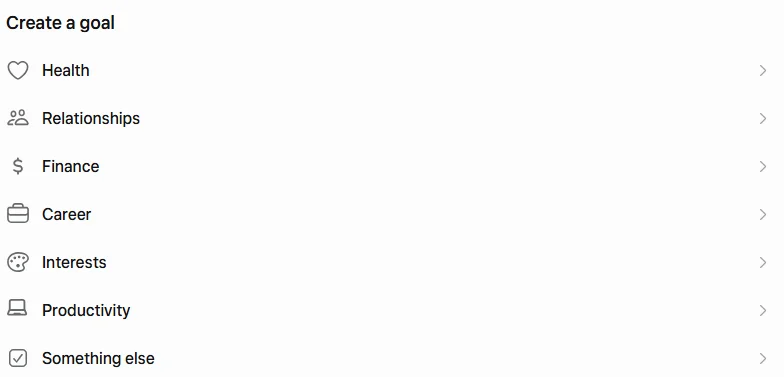
TestedThe Goals tab has a Tracking list of goals Muse is monitoring. Each has a checkbox, a title and a live status line, such as “Watch scheduled — checking … every 2 hours.” Below it, Create a goal offers seven categories.
We created a goal, then deleted it
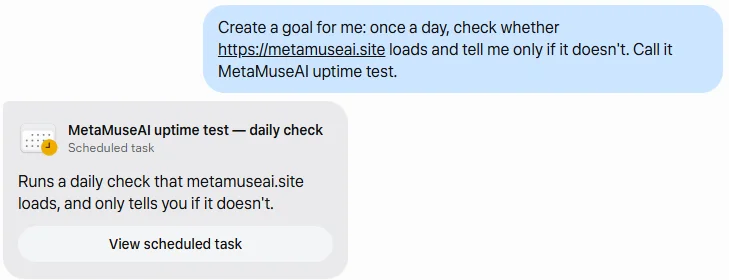
- Ask in chatWe wrote: “Create a goal for me: once a day, check whether https://metamuseai.site loads and tell me only if it doesn’t. Call it MetaMuseAI uptime test.”
- Muse set it upAbout a minute later it confirmed the goal was “saved in your Goals tab,” with a daily morning check, and showed a Scheduled task card with a “View scheduled task” button.
- It appeared in GoalsListed as “MetaMuseAI uptime test — Daily uptime check for metamuseai.site is set up and running.”
- Delete it the same way“Delete the MetaMuseAI uptime test goal.” Muse replied: “Deleted. The goal and its daily check are both gone, so there will be no more monitoring of metamuseai.site.”

Good goals are ongoing. Use Goals for watching, tracking and repeating: price drops, ticket sales, a deadline, a weekly report. One-off jobs belong in a normal chat. Background goals use your weekly allowance; see usage limits.
You can also delete a goal from its three-dot menu in the Goals tab.1 In our test the Goals tab was slow, taking around 25 seconds to load once and later sticking on loading placeholders, so deleting by chat was quicker. If that happens to you, see Muse not working.
Feed: your personal briefing
TestedThe Feed tab starts with “Your feed prompt”, the instruction Muse uses to build your feed. On our account it read: “Make me a feed about my interests. Keep the tone clear and direct. Ensure it is quick to skim. Try to avoid clickbait.” Below it are feed items, each with a title, a short summary, a time, a heart, and a Discuss button.
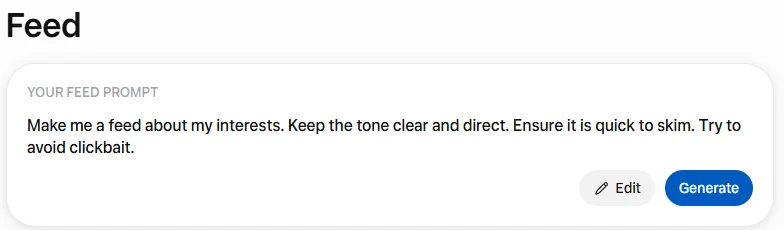
- To change it: press Edit, describe what you want in plain language (for example “Only news about my industry and anything urgent in my inbox, max 10 items”), then press Generate.
- What goes in: on our account the feed mixed topical news with items drawn from connected accounts, such as email follow-ups. If you’d rather keep your inbox out of it, say so in the prompt, or disconnect the account in Settings → Connectors.
Ideas: suggestions you can steer
TestedThe Ideas tab says: “I’m always thinking about new and different ways to help you. I’ll surface my favorite ideas here.” Ideas are grouped by theme (ours included Productivity and Financial Management), and each has a “…” menu with three choices:
- Let’s do it
- Start working on the idea.
- More like this
- Tell Muse you want similar suggestions.
- Not interested
- Remove it and steer away from that kind of idea.
On our account the ideas were clearly built from earlier chats and connected accounts. That makes them useful, and it’s also a reminder of how much Muse remembers; see editing Muse’s memory.
Sources
- How to manage your Muse data Meta Help Center
- Introducing Muse Meta Newsroom · Sept 8, 2026
Last tested in the app: 2026-10-05. Spotted something different? Tell us.
Frequently asked questions
How do I create a goal in Muse?
Either pick a category under “Create a goal” in the Goals tab, or just ask in chat, for example “Create a goal: once a day, check whether my website loads and tell me only if it doesn’t.” In our test, Muse set it up in about a minute as a scheduled task and listed it in Goals.
How do I delete a Muse goal?
Ask Muse in chat, e.g. “Delete the [name] goal.” Ours replied that the goal and its daily check were both gone. Meta’s Help Center also describes deleting a goal from its three-dot menu in the Goals tab.1
Can I change what appears in my Muse Feed?
Yes. The Feed tab shows “Your feed prompt” with an Edit button. Change the prompt in plain language and press Generate to rebuild the feed.
Where do Muse’s ideas come from?
They’re personal. On our account, the ideas clearly drew on earlier chats and connected accounts. Use each idea’s menu (“More like this” or “Not interested”) to steer future suggestions.